
A successful ERP implementation is less about software and more about process: decide how you want to work, move clean data, test with real transactions, then switch over on a date everyone is ready for.
Most growing businesses don't start from zero. They run on QuickBooks, a web of Excel files, an old on-premise package or a custom system someone built years ago. It works until it doesn't: orders get re-keyed, stock counts disagree, and month-end takes a week.
This guide walks through the full process of replacing that legacy setup with a modern cloud ERP, in six phases:
- Discovery and planning
- Configuration and integrations
- Data migration
- Testing and training
- Go-live and cutover
- Stabilize and optimize
For each phase you'll see what happens, who is involved and what has to be true before you move on. It's the same order we follow when we move businesses onto ERP36T.
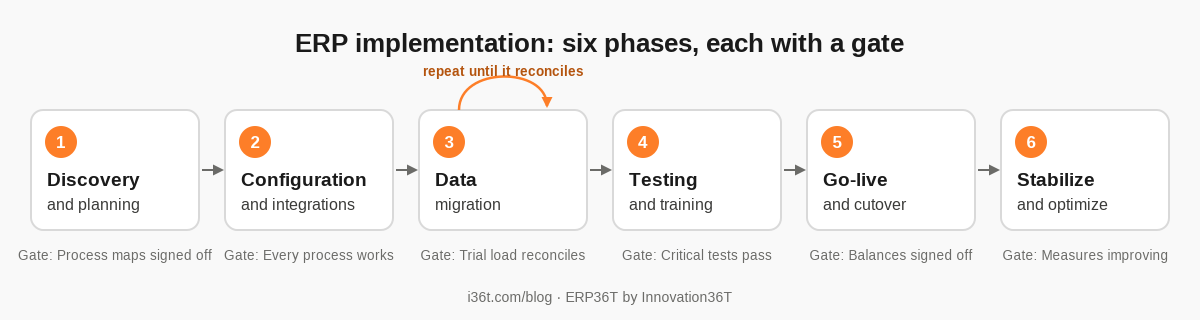
Data migration is the one phase you repeat: trial loads continue until every balance matches the old system.
Signs your legacy system is holding you back
If three or more of these sound familiar, the cost of staying put is probably higher than the cost of moving.
- The same data is typed twice. An order goes into one system, then again into accounting or the warehouse sheet.
- Nobody trusts the stock numbers. Counts differ between the shelf, the spreadsheet and the books.
- Month-end takes days. Closing the books means exporting, pasting and reconciling by hand.
- Reports need a specialist. Answering a simple question ("what did this customer buy last quarter?") means waiting for one person.
- Growth adds workarounds. A new warehouse, company or currency means another spreadsheet.
- The system depends on one person. Only the original developer or a long-time employee knows how it works.
- Compliance is manual. E-invoicing, tax templates or audit trails are bolted on after the fact.
Not sure which of these apply to you? Our free 30-minute ERP assessment walks through them with you. If you are still deciding whether you need an ERP at all, start with what an ERP system is and what it does.
Phase 1: Discovery and planning
Discovery decides how the business should run in the new system, before anyone touches the software. Skipping it is the most common reason ERP projects run late.
What happens
- Map your current processes. Follow a real order from quote to cash: who enters it, where it's approved, how stock moves, when it's invoiced and how payment is matched.
- Separate needs from habits. Some steps exist because the old system forced them. Keep what the business needs and drop the workarounds.
- Inventory your data and systems. List every source: the accounting package, spreadsheets, the e-commerce store, the POS, shared drives. Note who owns each one.
- Agree on scope. Choose the modules for go-live (for example accounting, sales, purchasing and inventory) and what can wait for a second phase.
- Set success measures. Pick a few numbers you'll check after go-live, such as days to close the month or order-to-invoice time.
- Name the team. An executive sponsor who can make decisions, a project lead, and one "key user" from each department.
Ready to move on when: the process maps are signed off, the scope is written down, and there's a target go-live date with the team's time blocked for it.
Tip: Bring one real transaction to your first session, such as an actual sales order. Walking it end to end exposes more requirements than any questionnaire. That's exactly how our free demo works.
Phase 2: Configuration and integrations
Configuration sets up the ERP to match the processes you agreed in discovery, using built-in settings first and custom code last. Every customization is something you'll maintain for years, so each one should earn its place.
What gets configured
- Company structure: companies, branches, warehouses, currencies and fiscal year.
- Accounting: chart of accounts, tax templates, payment terms and bank accounts.
- Workflows: approval rules, document numbering and who can see or change what.
- Documents: invoice, quote and delivery note layouts with your branding.
- Roles and permissions: one role per job, not per person, plus two-factor sign-in and audit trails.
What gets connected
List every system that must keep working alongside the ERP: your e-commerce store, payment gateway, bank feeds, shipping carriers, WhatsApp or SMS, and any legacy tool you're keeping for now. Connect them through the ERP's API rather than manual imports, so data flows one way and is typed once.
Ready to move on when: every process from discovery can be completed in the new system, and every integration has passed a test with real sample data.
Phase 3: Data migration from the legacy system
Data migration moves only what the new system needs, cleaned and checked, so you start with numbers you trust. The rule is simple: don't migrate a mess.
What to move
| Data | Typically migrated | Notes |
|---|---|---|
| Master data | Customers, suppliers, products, chart of accounts, price lists | Clean and de-duplicate before loading |
| Open transactions | Unpaid invoices and bills, open sales and purchase orders | Everything still in progress on cutover day |
| Balances | Opening trial balance, stock quantities and values per location | Loaded as of the cutover date |
| History | Prior-year totals for reporting | Often summarized, with full detail kept in an archive |
How it's done
- Extract the data from every source on your inventory list.
- Clean it: merge duplicate customers, fix product codes, close orders that are really finished, archive inactive records.
- Map each old field to its new home in the configured system, and standardize formats such as units, tax codes and currencies.
- Trial load into a test copy of the new ERP.
- Reconcile against the old system: customer balances, supplier balances, stock values and the trial balance must match to the cent.
- Repeat the trial load until the reconciliation is clean, then schedule the final load for cutover.
Ready to move on when: a full trial load reconciles with no unexplained differences, and the business owner of each data area has signed off.
With ERP36T, data migration includes reconciliation against your old system before go-live, whether you're coming from QuickBooks, Excel or a custom-built system.
Phase 4: Testing and training
Testing proves the system works for your business; training proves your people can work in it. Both use your own data, not demo data.
Testing, in three rounds
- Process tests: each key user runs their own daily tasks, such as creating an order, receiving stock or paying a bill.
- End-to-end tests: follow complete flows across departments, from quote to delivery to invoice to payment, and from purchase order to receipt to bill.
- Reconciliation test: run a parallel day or week. Enter the same transactions in both systems and compare stock, receivables and the trial balance.
Log every problem with an owner and a fix date. Don't go live with an open issue that affects money, stock or compliance.
Training that sticks
- Train by role, not by module. A warehouse picker needs different screens than an accountant.
- Let key users teach their own teams. They know the work and they'll be the first line of support after go-live.
- Write short how-to notes for the ten most common tasks, with screenshots from your own setup.
Ready to move on when: all critical tests pass, the parallel run reconciles, and every user has completed their own tasks in the test system at least once.
Phase 5: Go-live and cutover
Cutover is the planned switch from the old system to the new one, and most businesses do it at a period end with a short, scheduled freeze. Choose the approach that matches your risk and your team's capacity.
| Approach | How it works | Best for | Watch out for |
|---|---|---|---|
| Big bang | Everyone switches on one date | Smaller teams, one location, a clean trial load | Needs thorough testing first |
| Phased | Modules or locations go live in stages | Several branches or companies | Temporary links between old and new systems |
| Parallel run | Both systems run side by side for a short period | Finance-critical businesses | Double data entry; keep it short |
The cutover checklist
- Pick the date, usually the first day of a month or quarter.
- Freeze new entries in the old system and announce the freeze time.
- Run the final data load: open transactions, balances and stock.
- Reconcile the loaded balances against the old system's closing reports.
- Switch integrations (store, bank, shipping) to the new ERP.
- Set the old system to read-only and keep it for reference.
- Have support on hand for the first days, with key users on the floor.
Ready to move on when: the business is transacting in the new system and the opening balances are signed off.
Phase 6: Stabilize and optimize after go-live
Go-live is the start of getting value from the ERP, not the end of the project. The first weeks are for steadying daily work; the months after are for improving it.
The first weeks
- Hold a short daily check-in with key users to catch problems early.
- Close the first month in the new system and compare the result with what you expected.
- Fix permission gaps and small layout issues quickly, so people don't drift back to spreadsheets.
The months after
- Check the success measures you set in discovery. Has month-end got faster? Are stock counts matching?
- Turn on what you held back: automations, dashboards, self-service portals, more modules.
- Retire the remaining spreadsheets one by one.
- Review roles and access every quarter.
This is where one accountable vendor matters. With ERP36T, hosting, support and the helpdesk come from the same team that implemented the system, so there's no finger-pointing when something needs fixing.
Common mistakes to avoid
Most failed ERP projects fail for business reasons, not technical ones. These are the ones we see most often.
- Copying the old system. Rebuilding every legacy screen and workaround brings the old problems into the new system.
- Migrating everything. Ten years of inactive customers and dead products slow the project and clutter the new system.
- Customizing before learning the standard. Use the system as designed for a while; most "must-have" customizations turn out to be unnecessary.
- No decision-maker. Without a sponsor who can settle disagreements between departments, the project stalls.
- Testing with demo data. Problems only show up with your real products, prices and edge cases.
- Training too early or too late. Train in the weeks just before go-live, when people will use it right away.
- No plan for day two. Decide before go-live who users call when something goes wrong.
How long it takes and what it costs
With a focused scope and clean data, a growing business can go live on a cloud ERP in weeks, not quarters. On ERP36T, a business of up to 200 employees typically goes live in three to six weeks. Large enterprise projects take far longer, mostly because of scope and custom code, not the software.
What drives the timeline
- Scope: how many modules, companies and locations go live at once.
- Data quality: clean master data loads quickly; messy data needs several cleanup rounds.
- Integrations: each connected system adds design and testing time.
- Customization: standard features configure fast; custom development adds weeks.
- Team availability: key users who can give the project a few hours each week keep it moving.
What it costs with ERP36T
| Item | Starting price (USD) |
|---|---|
| Implementation (configuration, workflows, training, go-live), one-time | from $897 |
| Data migration with reconciliation, one-time | from $1,500 |
| Starter plan, 5 users included | $299 per month |
| Business plan, 10 users included | $599 per month |
| Professional plan, 30 users included | $999 per month |
| ERP assessment (30 minutes) | Free |
See full pricing, use the cost calculator to estimate your own setup, or read our ERP cost breakdown for small businesses.
Frequently asked questions
What are the main steps of ERP implementation?
Six phases: discovery and planning, configuration and integrations, data migration, testing and training, go-live and cutover, then stabilizing and optimizing.
What is legacy system migration?
It's moving your data and processes from an older system, such as QuickBooks, spreadsheets or a custom-built tool, into a new ERP, then retiring or archiving the old one.
Do I need to migrate all my historical data?
Usually not. Move master data, open transactions and opening balances. Keep older history as summaries or in a read-only archive.
Can we keep using some of our existing tools?
Yes. A modern ERP connects to tools you keep, like your online store or bank, through its API, so data is entered once.
How do we avoid disrupting daily operations?
Plan cutover for a period end, run a short data freeze, test with your real transactions beforehand and have support on hand for the first days.
What's the biggest risk in an ERP project?
Unclear decisions and poor data, more than technology. A decision-making sponsor and a clean, reconciled data load remove most of the risk.
Is cloud ERP safe for our data?
Look for two-factor sign-in, role-based permissions, audit trails and regular backups. ERP36T also offers private cloud and on-premise deployment if you need the data in your own environment.
Ready to plan your move?
The fastest way to know what your migration involves is to walk one real transaction through it. Book a free 30-minute ERP assessment and we'll map your current setup, flag the data that needs cleaning and outline a realistic go-live plan. Or book a demo, bring one of your own orders, and watch it run end to end in ERP36T.
Related on i36t.com
More from the blog
Not sure an ERP is the right next step?
A free 30-minute assessment: we look at how you work today and tell you honestly whether an ERP is worth it yet, and what it would take.
Get a free assessment